Youth Challenge Proctoring Guidelines
Contest: Sunday, November 29, 9:00-12:00 UTC
Proctoring Submission Deadline: Monday, November 30, 9:00 UTC
All you need to know
This year, the Youth Challenge (used as an ACTS Entrance Contest) will be conducted with remote proctoring to help ensure fair play and equal conditions for all participants from the Senior League.
During the contest, candidates are required to record their full screen, webcam and audio using Open Broadcaster Software (OBS, see instructions below) for the full duration of the contest. While recording your surroundings is not strictly mandatory, it is strongly encouraged as it helps to provide a complete view of your setup if any clarifications are needed. After the contest, you will need to submit your recording for review. If no recording is provided, we may be unable to confirm compliance with the contest rules, and this may affect your contest results.
To help you prepare, we’ve put together a short guide covering the rules, the setup process, and the submission steps. If you have any questions, please contact us on Discord or by email at youthchallenge@jetbrains.com.
How to submit
See how to upload your recording after the contest, what information to include, and what to do if you run into any issues.
We strongly recommend doing a short test recording — submit it to us for review.
Rules & Regulations
Any form of cheating, plagiarism, using artificial intelligence (AI) tools, or dishonest conduct — whether during the contest, or on associated platforms (including but not limited to Codeforces) — is strictly prohibited. Organizers reserve the right to investigate suspected violations and take appropriate action, including but not limited to:
- Disqualification from the Youth Challenge contest
- Immediate revocation of the Youth Challenge certificate and medal, Youth Club invitation, and the ACTS in Cyprus 2027.1 invitation
- Permanent ban from future JetBrains events and events supported by the JetBrains Foundation
What resources and tools you may and may not use:
Codeforces
Official programming languages documentations
Code editors and IDEs
Local tools for writing and testing code
Translator
Any help from other people, including discussing tasks or solutions during the contest
AI tools of any kind, including AI autocomplete hints and AI-assisted code completion
Searching for hints or solutions and copying code
Using pre-written code
Recording requirements
Use OBS Studio to record your full screen and webcam for the entire contest. To take part in the selection, you must record:
Your full screen
Only allowed resources
Your face on camera
Before you start
Please ensure that your recording complies with the following minimum requirements:
- screen & camera recording resolution: at least 1280×720;
- screen & camera recording frame rate: at least 15 fps;
- microphone audio recording is required throughout the contest;
- required file formats: MP4, MKV.
Install OBS Studio from obsproject.com and run the Auto-Configuration Wizard. For more information check out the OBS Quick Start Guide.
1. Download
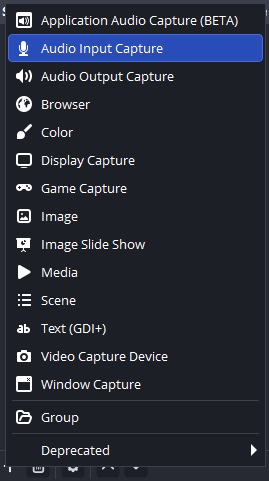
2. Add your screen, your cameras and your audio source
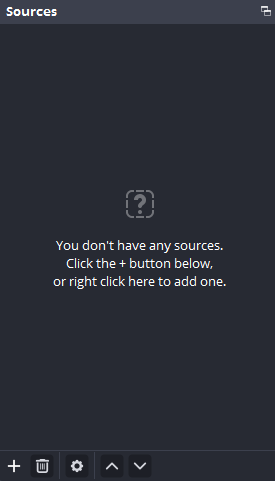
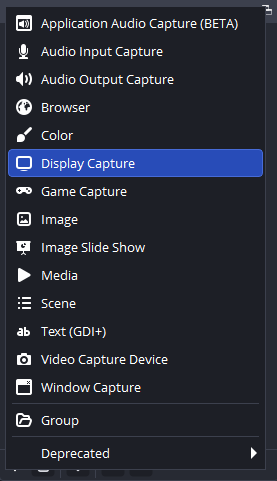
In the Sources dock (bottom of the screen), click + and select Display capture. Make sure your entire monitor is visible in the preview – do not use the “Window Capture” option. Leave the “Capture Cursor” option selected
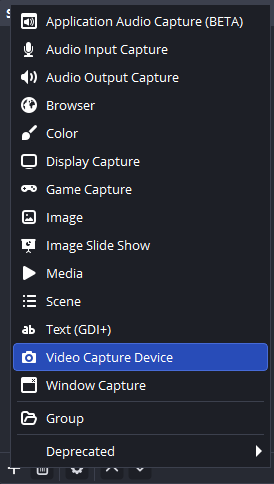
Click + again and select Video Capture Device. Choose your built-in webcam or an external camera connected to your computer.
Click + again and select Video Capture Device to record your surroundings. Choose another external camera connected to your computer.
Click + again and select Audio Input Capture. Choose your built-in microphone or an external one connected to your computer.
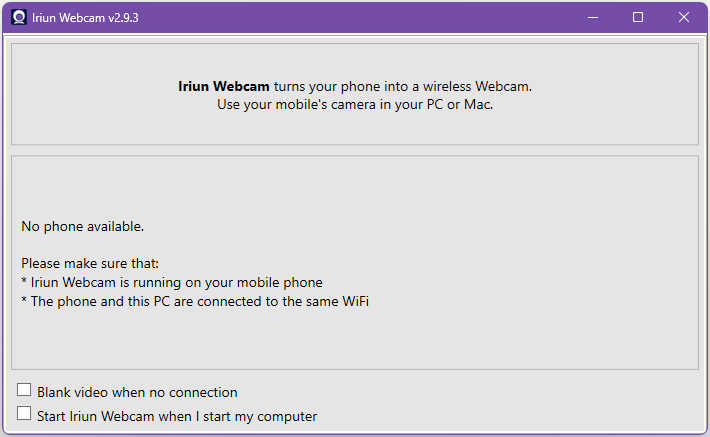
If you don't have a built-in camera and microphone you can use your phone as a Video Capture Device and Audio Input Capture in OBS. This method can also be used to set up an additional video capture device.
Use Iriun Webcam to use your phone’s camera and microphone in OBS:
- Install Iriun Webcam on both your computer and your phone.
- Make sure both applications are running and both devices are connected to the same WiFi network.
- Position your phone to your front so it captures your face or to your side to capture your workstation.
- Iriun Webcam will be available to be chosen as a device in both Video Capture Device and Audio Input Capture in OBS.
How to set up your OBS Studio correctly
Use OBS Studio with your laptop's built-in webcam and microphone and/or other camera and microphone options described below. This is the most reliable way to create a single video file that includes both your work, your face and your surroundings.
3. Create the Picture-in-Picture effect and lock layers
Your camera feed will appear over your screen capture. To resize click the red corners of the camera box and shrink it. Move the box to a corner (e.g., bottom-right) where it won't block your code. If the camera is not visible, simply drag 'Video Capture Device' so it is above 'Display Capture' in the Sources list.
Click the small padlock icon next to both sources so they stay perfectly in place while you code.
If using a second camera, repeat this process for the additional Video Capture Device and position its window adjacent to the first or in another corner.
4. Output settings
Go to Settings > Output. Set Recording Format to mp4 or mkv. Set the Recording quality to High Quality, Medium File Size to keep the final file easy to upload. This setting is sufficient to meet the quality requirements, so you will not need to configure all parameters manually.
Ensure you have at least 10 GB of free space on your computer before you start recording. Video files can be quite large – this ensures that your recording doesn't cut out unexpectedly.
5. Start recording
Click Start Recording (on the right below the video preview) to begin the recording.
How to submit your recording
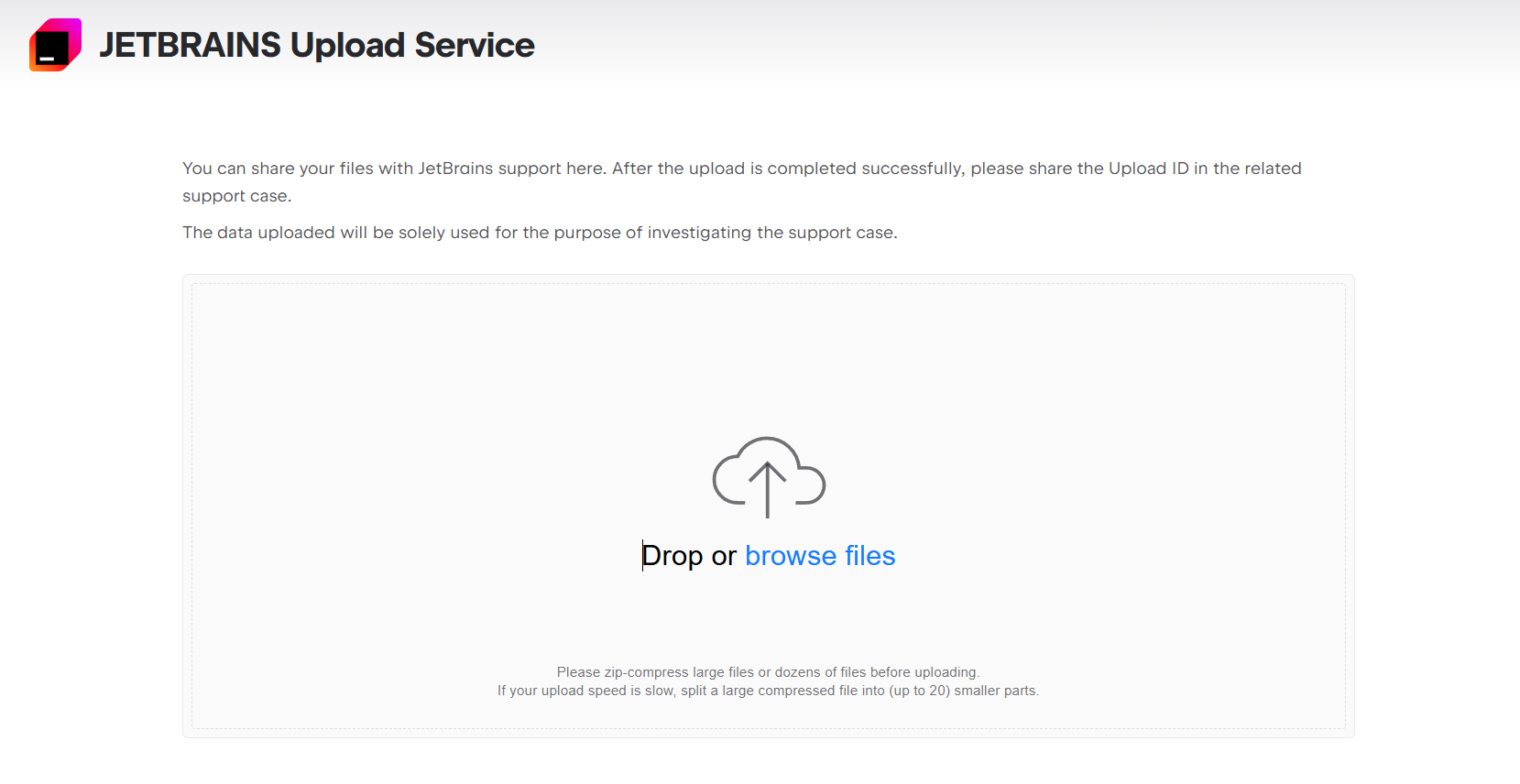
After the contest, you will need to submit your recording for review. Please follow the steps below carefully to make sure your file is complete and can be reviewed without issues.
1. Finish your recording
2. Check the file locally
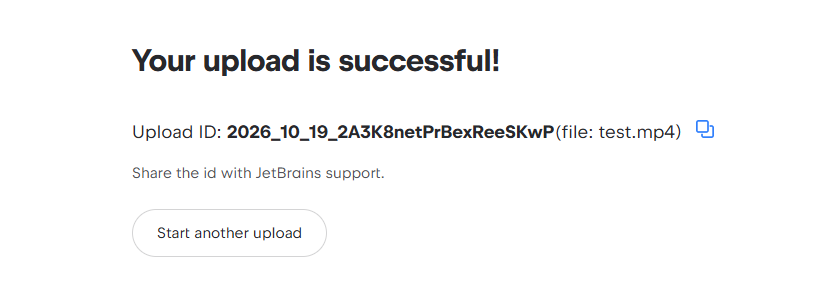
3. Upload the file
4. Upload it through the form
Your recordings will be processed by JetBrains on the legal basis of legitimate interest of the organizer, solely for the purpose of academic integrity and the detection of dishonest conduct. Recordings will be accessible only to JetBrains employees involved in the review process, and no automated systems will assess or make decisions about your selection. All recordings will be permanently deleted within 30 days of the Youth Challenge.
FAQ
Yes, using online translation tools (such as Google Translate) is allowed solely for translating problem statements.