ACTS 2026 Proctoring Guide
Entrance Contest: Sunday, April 26, 8:00-11:00 am UTC
Proctoring Submission Deadline: Monday, April 27, 8:00 am UTC
Rules & Regulations
Any form of cheating, plagiarism, using artificial intelligence (AI) tools, or dishonest conduct — whether during the entrance contest, in-camp activities, or on associated platforms (including but not limited to Codeforces) — is strictly prohibited. Organizers reserve the right to investigate suspected violations and take appropriate action, including but not limited to:
- Disqualification from contests or activities
- Immediate revocation of the camp invitation
- Permanent ban from future Algorithm and Code Training School Events
What resources and tools you may and may not use:
Codeforces
Official programming languages documentations
Code editors and IDEs
Local tools for writing and testing code
Any help from other people, including discussing tasks or solutions during the contest
AI tools of any kind, including AI autocomplete hints and AI-assisted code completion
Searching for hints or solutions and copying code
Using pre-written code
Recording requirements
Use OBS Studio to record your full screen and webcam for the entire contest. To take part in the selection, you must record:
Your full screen
Only allowed resources
Your face on camera
Before you start
Please ensure that your recording complies with the following minimum requirements:
- screen & webcam recording resolution: at least 1280×720;
- screen & webcam recording frame rate: at least 15 fps;
- microphone audio recording is required throughout the contest;
- recommended file formats: MP4, MKV.
Install OBS Studio from obsproject.com and run the Auto-Configuration Wizard. For more information check out the OBS Quick Start Guide.
1. Download
2. Add your screen, your camera and your audio source
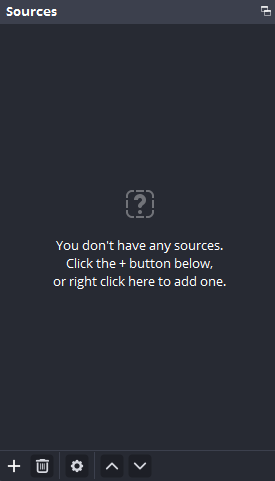
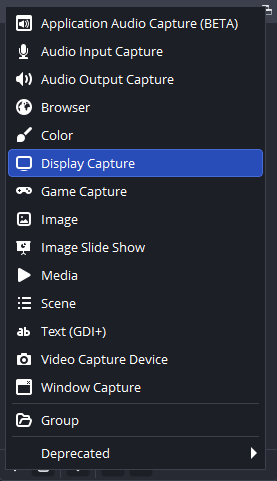
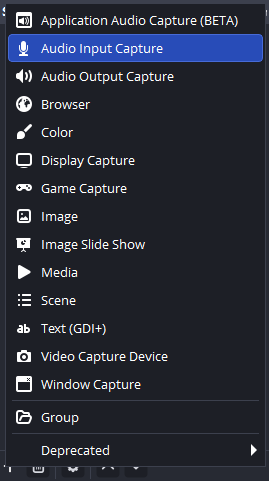
In the Sources dock (bottom of the screen), click + and select Display capture. Make sure your entire monitor is visible in the preview – do not use the “Window Capture” option. Leave the “Capture Cursor” option selected
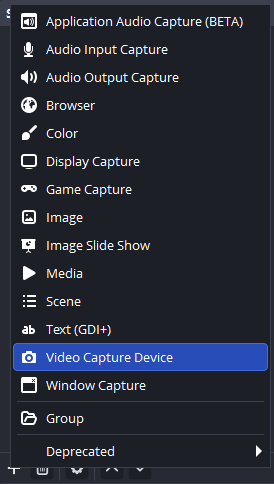
Click + again and select Video Capture Device. Choose your built-in webcam or an external camera connected to your computer.
Click + again and select Audio Input Capture. Choose your built-in microphone or an external one connected to your computer.
If you don't have a webcam or a connected external cameracamera and microphone you can use your phone’s camera as a Video Capture Device and Audio Input Capture in OBS.
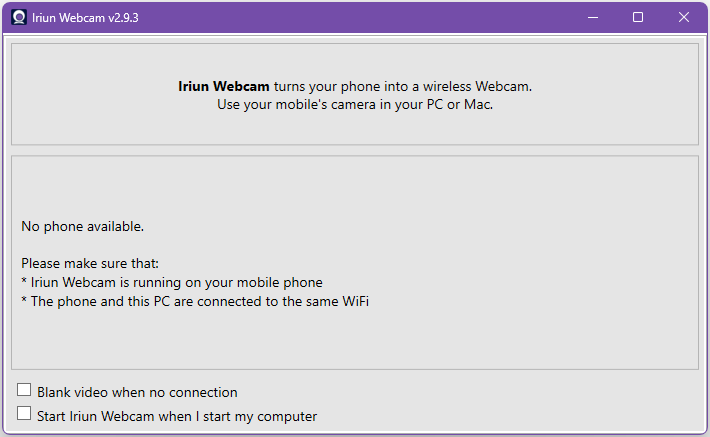
Use Iriun Webcam to use your phone’s camera and microphone in OBS:
- Install Iriun Webcam on both your computer and your phone.
- Make sure both applications are running and both devices are connected to the same WiFi network.
- Position your phone to your side or front so it captures your face.
- Iriun Webcam will be available to be chosen as a device in both Video Capture Device and Audio Input Capture in OBS.
How to set up your OBS Studio correctly
Use OBS Studio with your laptop's built-in webcam and microphone or other camera and microphone options described below. This is the most reliable way to create a single video file that includes both your work and your face.
3. Create the Picture-in-Picture effect and lock layers
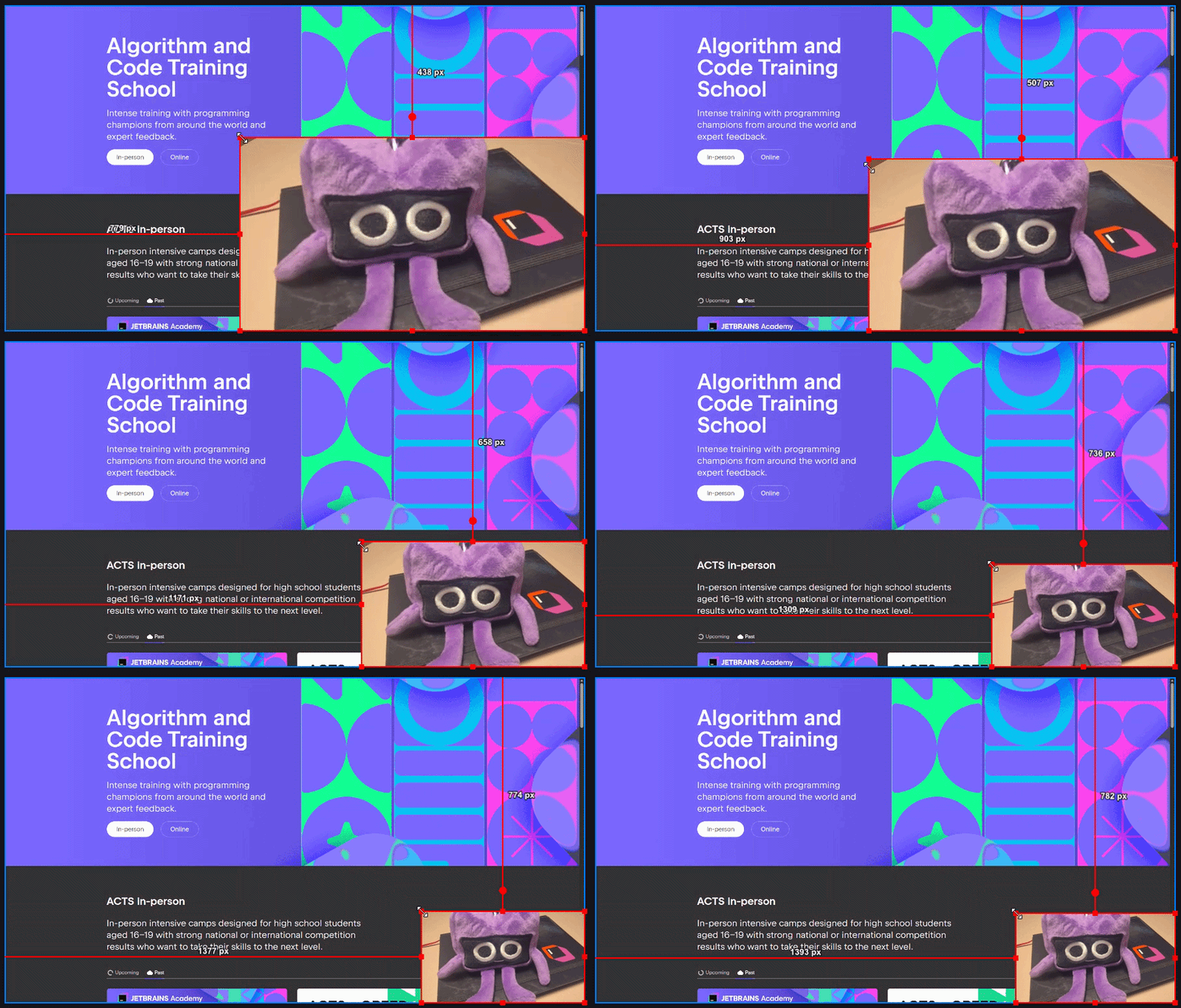
Your camera feed will appear over your screen capture. To resize click the red corners of the camera box and shrink it. Move the box to a corner (e.g., bottom-right) where it won't block your code. If the camera is not visible, simply drag 'Video Capture Device' so it is above 'Display Capture' in the Sources list.
Click the small padlock icon next to both sources so they stay perfectly in place while you code.
4. Output settings
Go to Settings > Output. Set Recording Format to mp4 or mkv. Set the Recording quality to High Quality, Medium File Size to keep the final file easy to upload. This setting is sufficient to meet the quality requirements, so you will not need to configure all parameters manually.
Ensure you have at least 10 GB of free space on your computer before you start recording. Video files can be quite large – this ensures that your recording doesn't cut out unexpectedly.
5. Start recording
Click Start Recording (on the right below the video preview) to begin the recording.
Your recordings will be processed by JetBrains on the legal basis of legitimate interest of the organizer, solely for the purpose of academic integrity and the detection of dishonest conduct. Recordings will be accessible only to JetBrains employees involved in the review process, and no automated systems will assess or make decisions about your selection. All recordings will be permanently deleted within 30 days of the Entrance Contest.